Nov 20, 2026 | 10 Min Read
Two-Factor Authentication for Ecommerce Stores: Passkeys First
Key takeaways
- Phishing is the most reported cybercrime in the US, and a password plus a code you type does not stop a convincing fake sign-in page.
- A passkey does. It signs you in with your face, fingerprint or device PIN, counts as both steps, and the browser refuses to use it on the wrong site.
- Passkeys follow you across devices in the same family (Apple, Google, Windows), and a Windows Hello passkey stays on that PC unless your browser syncs it.
- Text codes and backup codes cover you when a passkey is not an option.
If you run an online store, the login to your admin is the most valuable thing you own that is not a part number. Whoever holds it can read your orders and customer details and change prices and checkout. Two-factor authentication is the standard answer, and the usual complaint is "it is one more thing to type."
That complaint is fair, and it points at the better answer: the easiest option is also the strongest. This guide covers every sign-in option on the Web Shop Manager admin, which one stops phishing, and how face, fingerprint or PIN sign-in works across your devices.
Why store admin logins get taken over
Phishing is the most reported cybercrime in the US (FBI IC3 2024: 193,407 complaints, more than double the next type). Stolen passwords remain one of the top ways attackers break in (Verizon DBIR 2025, 22%).
It looks like an email from a payment processor, a carrier or your own platform saying your account needs attention, with a link to a pixel-perfect copy of the real sign-in. You type your email and password. The copy passes them to the attacker, who types them into the real page in the same minute.
That is why a long, unique password is not enough: the password is exactly what the fake page collects. One convincing email to anyone on your team with admin access is all it takes.
Two-factor authentication adds a second proof beyond the password. The question is which proof still works when someone is staring at a convincing fake.
What two-factor protects
Sign-in asks two questions. Do you know the secret (your password, or a code emailed to you)? Do you have the thing (your phone, your computer or a saved code)? An attacker who only phished a password has answered one. Two-factor stops reused passwords, bot guessing and some phishing. Google measured it in a study of account hijacking: an SMS code sent to a recovery phone blocked 100% of automated bots, 96% of bulk phishing attacks and 76% of targeted attacks, and on-device prompts blocked 100%, 99% and 90% (Google Security Blog, 2019).
Two-factor is one layer. Our guide to security and SSL for auto parts ecommerce covers the others.
Your sign-in options, best first
The Web Shop Manager admin sign-in offers the options below. For every option except a passkey, the first step is your password or a code emailed to you, and the second step is one of the others. A passkey is different: it is the whole sign-in.
| Method | What you do | Stops a fake sign-in page? |
|---|---|---|
| Passkey | Touch the fingerprint sensor, look at the camera or enter your device PIN | Yes. The browser checks the site address before it offers the passkey |
| Text code | Type the code sent to your phone | No. A code you type can be typed into a fake page |
| Authenticator app | Open the app and type the code it shows | No, for the same reason |
| Backup codes | Type one of your saved single-use codes | No, for the same reason. Keep them for emergencies |
A passkey is the one to pick if your device supports it, and most phones and recent computers do. A text code is the easy fallback when you are on a borrowed machine.
An authenticator app suits people who already use one. It is still a code you type, so it protects against a fake page no better than a text code does. If a passkey is available, start there.
Backup codes are the list you print and put in a drawer so that a lost phone is an annoyance rather than a lockout.
Our sign-in help article has steps for each option. This guide is about choosing, not clicking.
How a passkey works across your PC, Mac and phone
A passkey is a pair of keys made for one website. The private half is never sent to the website. The public half goes to the site. When you sign in, the site sends a challenge, your device signs it, and the site checks the signature with the public half. Nothing secret crosses the wire, so nothing can be stolen from the wire.
What unlocks the private half is the thing you already use to unlock your device: your face, your fingerprint or your PIN. The site never sees your face or fingerprint. The check happens on your device and the site only receives the proof (passkeys.dev).
Passkeys sync inside a family of devices.
- Apple. A passkey saved on your iPhone is stored in iCloud Keychain, so your iPad and Mac can use it too. Face ID, Touch ID or your device passcode unlocks it (Apple).
- Google. On Android and in Chrome, passkeys are saved to Google Password Manager and follow your Google account to your other devices, unlocked by your face, fingerprint or screen lock (Google).
- Windows. A passkey on a Windows PC is unlocked by Windows Hello: your face, your fingerprint or a PIN (Microsoft). That PIN is a device unlock, not a code anyone types into a website.
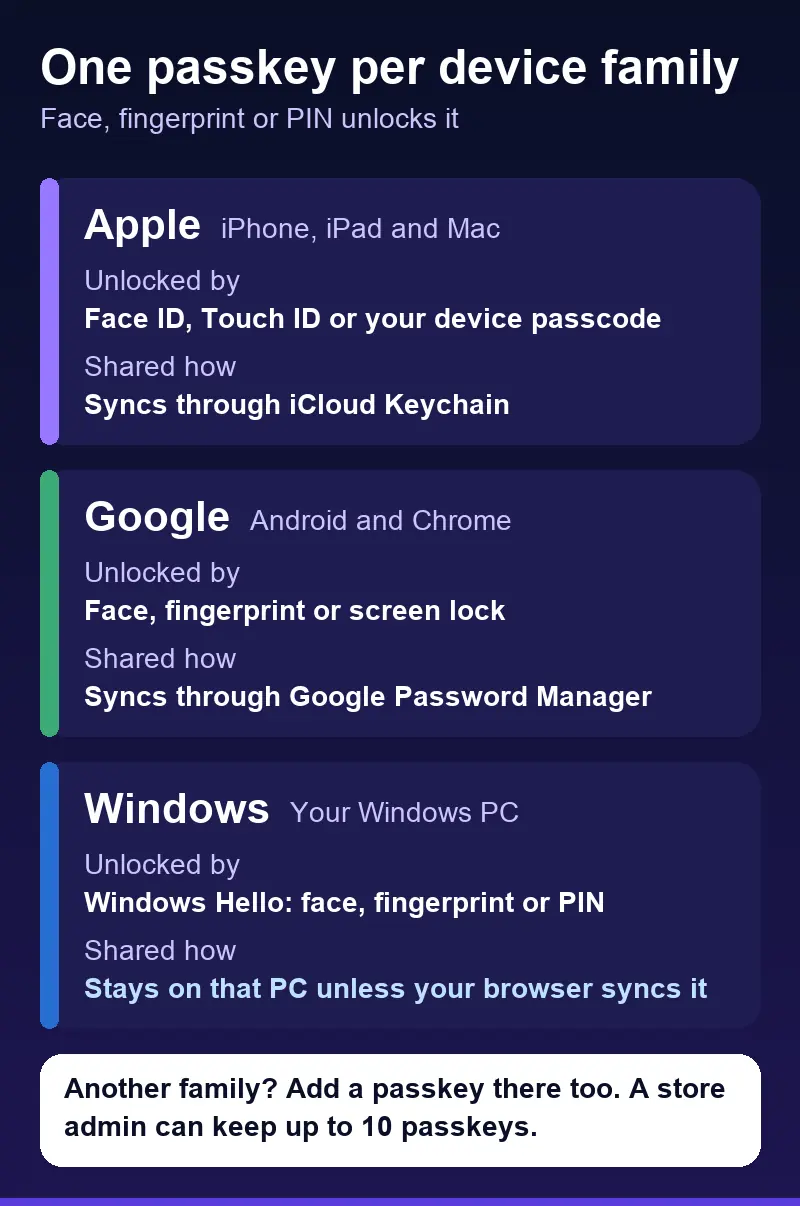
"All one system" is true inside each family. An iPhone and a Mac share a passkey. A Windows Hello passkey stays on that PC unless your browser syncs it. If you use a Windows PC at work and an iPhone in your pocket, add a passkey on each, so every device you use daily has its own. A store admin can keep up to 10 passkeys, so adding one per device family is normal.
Tired of typing codes?
If codes annoy you, passkeys were made for you. Here is a day with one set up.
On your Mac or iPhone, you open the admin sign-in and choose the passkey button. Your device asks for a face or a finger. You are in. No texts, no app, no code to type before it expires.
On your Windows PC, the same button asks for your Windows Hello PIN, face or fingerprint. You are in.
Nothing on those paths asks you to read a number off one screen and type it into another. That is the part most people mean when they say two-factor is annoying.
Add yours now: open Security and press Add a passkey (sign-in help).
Why passkeys stop phishing
Go back to the fake page. A passkey is made for one address. When you reach a page at a different address, even one that looks identical, your browser compares the address to the one the passkey was made for. They do not match, so the browser does not offer the passkey. There is no password to type and no code to read out. The attacker's page gets nothing because nothing exists that a person could be talked into handing over.
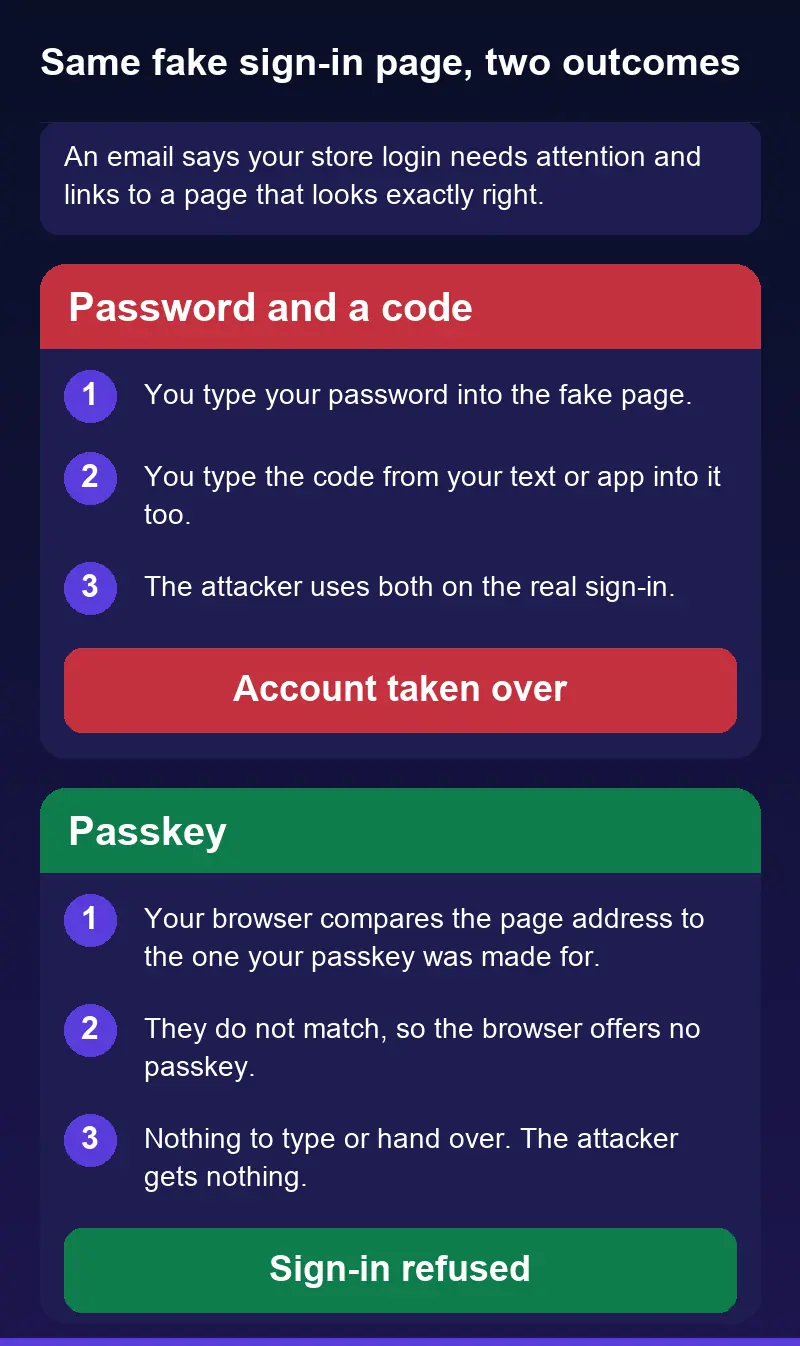
This is the main reason passkeys are described as phishing-resistant by the FIDO Alliance, the group that wrote the standard (FIDO Alliance). The protection does not depend on you spotting the fake. It works when you are tired, in a hurry, and the email looks exactly right.
A text code is a real improvement, as the Google numbers above show, but it is something you read and type, so a patient attacker with a convincing page can ask for it too. A passkey removes the thing to ask for.
Where this lives on Web Shop Manager
Store admins on Web Shop Manager sign in through one page, and that page offers every option in the table above, with a password or emailed code as the first step for all but a passkey. A passkey counts as both steps, so choosing one takes you straight in.
Web Shop Manager stores can require a second factor for everyone who signs in to the admin. Where it is required, a passkey is the quickest way to meet it, and the sign-in page has a "Sign in with your passkey" button for exactly that.
On Web Shop Manager 6.0 it is the same sign-in, same options.
Setting up a passkey takes about a minute. Open Security in your account and press Add a passkey. The steps are in the sign-in help article.
If you are choosing a platform and want to see how security fits with fitment, catalog and checkout, start with the ecommerce platform overview.
Frequently asked questions
Is a text code enough, or do I need a passkey?
A text code is a real step up from a password alone and far better than nothing. A passkey is stronger because there is no code to type into a fake page, and it is usually faster. If your device supports a passkey, choose it, and keep a text code or backup codes as the fallback.
What if I lose my phone or replace my computer?
Backup codes are for exactly this. Save them somewhere safe before you need them. Passkeys that sync through iCloud Keychain or Google Password Manager come back when you sign in to your Apple or Google account on the replacement device, and because you can keep up to 10 passkeys, adding one on a second device is cheap insurance.
Will a passkey work on my Windows PC and my iPhone?
Yes. Add one on the PC with Windows Hello and one on the iPhone. A passkey syncs within its own family (Apple through iCloud Keychain, Google through Google Password Manager), and a Windows Hello passkey stays on that PC unless your browser syncs it. On a borrowed computer, use a text code or a backup code instead.
Does Web Shop Manager store my face or fingerprint?
No. Your face or fingerprint unlocks the passkey on your own device, and the site only receives a cryptographic proof that the unlock happened. How we handle account data is described in our privacy policy.
Can everyone on the team share one admin login?
It is better not to. A shared login means one phone, one set of codes and no record of who did what. Give each person their own sign-in and let each choose a passkey.
Where are the setup steps?
They are in our sign-in help article, with steps for each option and each kind of device.



Get in touch with us
Reach out to us for any inquiries or support, and let’s connect!


More On Related Topic
Explore our highlighted blogs for the latest insights and trends in the industry.
Auto Part Data Security: Copy Protection & Digital Watermarks
Secure your store! Learn essential e-commerce security practices and how to implement SSL to protect your auto parts data.
2026 Automotive Ecommerce: SEMA Trends & Market Strategy
Get the essential 2026 forecast for automotive ecommerce. See SEMA's $52.92B market data, the online vs in-store channel split, and shifts in DIY/DIFM sales.

Ready To Grow Your Business?
Ready to grow your aftermarket eCommerce presence and lift conversions across auto, truck, powersports, marine, and more? Connect with
Web Shop Manager for tailored solutions: strategy, platform, and performance in one team.