Aug 19, 2016 | 4 Min Read
Simple Content Management System: The Ultimate Guide for Beginners
Simple Content Management System for Product Listings

Managing 10s, 100s, or 1000s of products from one intuitive dashboard has always been what Web Shop Manager™ (WSM) has offered to our clients. From that simple idea, we continue to improve WSM (eCommerce CMS) based on client and staff feedback and suggestions. Listening to those recent suggestions we have added a simpler product update feature that will save time, and just makes good sense.
The new easy to use Content Management System enhancements come in the form of quick product edits. Previously to edit any portion of a product listing you would navigate to the product, click edit, change the appropriate data field, and save your changes. Well this works great if you want to change the cross-sell/up sell feature or modify product options. Although, if you simply want to change a product name, or update the sale price, you can do that right from the product list!
Easily Manage eCommerce Product Listings With Our Simple Content Management System
In order to make it easier for our eCommerce clients to make more money instead of spending their free time updating products, our product listing screen has been enhanced for our existing eCommerce clients. This should look familiar:
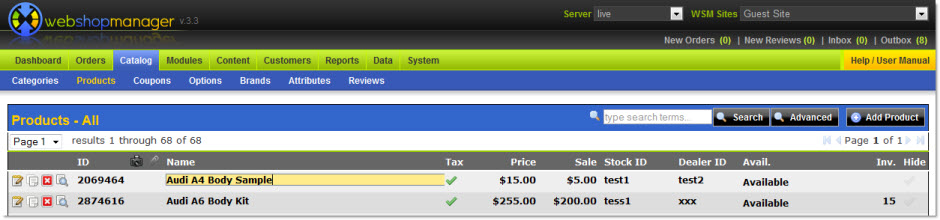
However, you may notice that fields can be edited right from the Product listing page! Here is the scoop on what can be edited from this page:
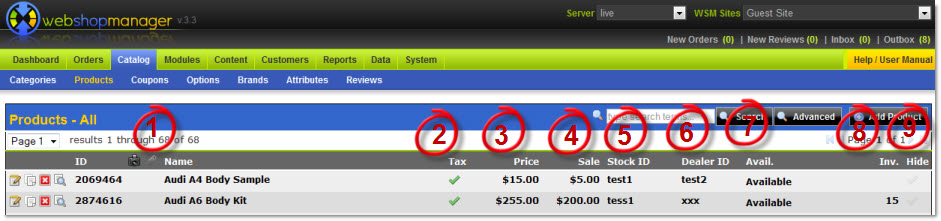
1. Name- This is the product name displayed to the customers in the eCommerce product catalog.
2. Tax- If the item is subject to tax, the tax check must appear.
3. Price- The normal price of the item.
4. Sale- If set; this will override the price field when a customer purchases this item. The sale price will be displayed in addition to the normal price in product listings.
5. Stock ID- This is a custom stock identification number displayed to the customer.
6. Dealer ID- This is the identification number given to the product by the manufacturer.
7. Avail.- If the availability is set to Sold or Out of Stock, customers will not be able to purchase this item or add it to their cart. If the availability is set to Inventory, the display of the add to cart button is calculated based on the remaining inventory (8.). If the remaining inventory is (0), then customers will not be able to purchase this item.
8. Inv.- Current number of items in stock.
9. Hide- Toggle between hidden and unhidden. Hidden items are not displayed in the E-Commerce catalog.
Simply hover over the item you wish to change, click, and make your edits! There is no need to save from this screen. WSM will automatically save those product updates for you and they will be reflected automatically on the frontend for your customers.
In addition, from the Category List you can click on Priority to type in the desired value:
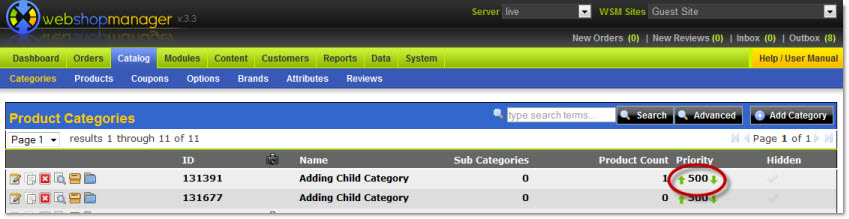
Did you ever think organizing your eCommerce product catalog could be this fun?
Product Management Tools
When you need the right tools to get the job done, make sure you talk to eCommerce industry experts, WSM. We have you covered from tiered pricing levels, custom eCommerce Web Design, and Website Development! Whether you are looking to break into eCommerce or are already established we’re confident we can find a solution to match your needs with WSM. Contact WSM to speak with one of our eCommerce expert staff, or click to get a free web design quote, and begin exploring your options. We would be thrilled to provide your company with the same level of service & support that so many of our existing clients have enjoyed for years. Then you can start planning what you will do with all your free time!
Get more from Web Shop Manager in Google Search:



Get in touch with us
Reach out to us for any inquiries or support, and let’s connect!


More On Related Topic
Explore our highlighted blogs for the latest insights and trends in the industry.
User Interface Design: How to Cater Your UI to the User
User Interface Design - Focus on the User ExperienceUser interface design, or user centered design, is simply designing an application or software program while focusing on the experience it will present to the user....
The Changing Landscape of Marketing
The Changing Marketing Landscape in eCommerceIt should come as no surprise that the web has completely changed the way that marketing works. Old strategies no longer apply in a world that is interconnected. In...
The Importance of E-commerce Branding: Boost Your Online Store’s Success
How to Create A Brand Image - eCommerce BrandingWhen you set out to build something as complicated as a fully operational company, you’re actually creating much more than that. In order to be truly...

Ready To Grow Your Business?
Ready to grow your aftermarket eCommerce presence and lift conversions across auto, truck, powersports, marine, and more? Connect with
Web Shop Manager for tailored solutions: strategy, platform, and performance in one team.