Guided Navigation & Layered Faceted Search - Brands & Attributes Variants

Reduce Shopping Cart Abandonment

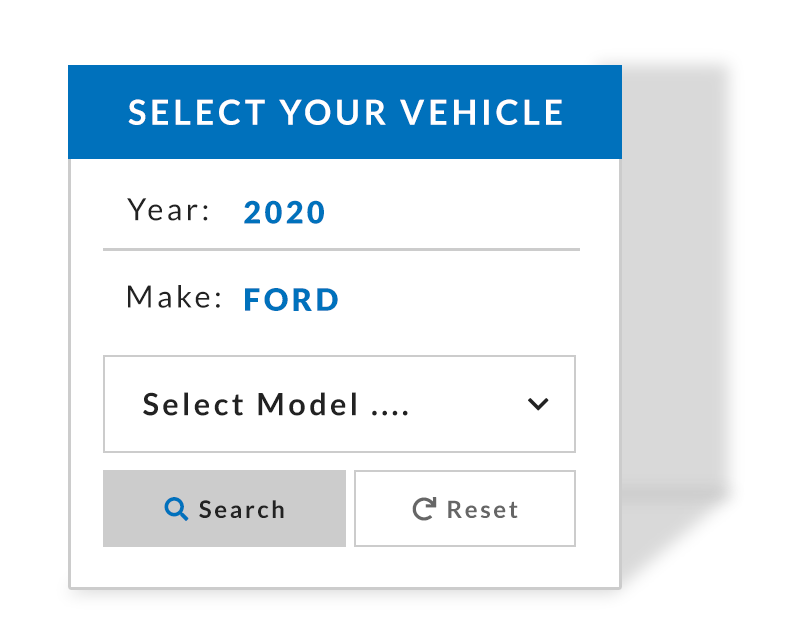
Make Model Year Layered NavigationWhy do customers abandon shopping carts?  Typically, because they could not find the right product for them, or they were uncertain the product they found is the right solution.  How can eCommerce site owners reduce shopping cart abandonment, and help customers sort through 100s or 1000s or products? With guided navigation of course!

Web Shop Manager™ WSM, Web Design Solutions’ comprehensive eCommerce Content Management System, has a powerful solution that has worked for many eCommerce site owners.  The solution is organizing products in categories, brands and attributes.  Brands & Attributes with Variants allows hundreds, thousands, or millions of products to be organized by brands/model/part.  Using many categories without additional modifiers, leaves your site muddied with lists, and lists of categories.  Your customers will become confused, and will be more likely to leave your site for a competitor.  Integrating attributes, allows you to organize your products in a way that is intuitive for your customers, and will increase conversion rates with guided search.  Use categories for each product type, assign brands to help your customers select their favorite brand or manufacturer, and attributes to describe product features, or applications.  Assigning attributes provides an alternative search method, and quickly narrows the product selection process by creating real-time results without the need for sub categories. 

In addition to reducing shopping cart abandonment, site owners and customers alike can rest assured that they have found the perfect solution for their needs.  Brands & Attributes can be utilized for many industries including Automotive Aftermarket with a Make Model Year lookup, Computers & Technology with a lookup like Newegg, Business 2 Business, Travel & Tourism, and many more to drastically expand your customers search functionality.  From a business owner’s perspective, the attribute system is easy to manage, making it the ideal solution to organizing your products.

Create an Organized Shopping Experience for Site Users with Guided Navigation

Organizing your products is one of the most important and useful features of your eCommerce website. It allows your customers to find what they want quickly and easily. This could make the difference between someone shopping your eCommerce website, or your competitors. We offer Shopping Cart solutions that will help provide the competitive edge needed in your market.

Our Brand & Attribute with Variant system allows site owners to determine which attributes are important to the selection process from a customer prospective.  Looking at Automotive Aftermarket as an example of how this might work, you can imagine that a car owner may not know the exact part, or accessory, but they do know the features of their particular automobile.  Assigning categories/brands/attributes to your products can help your clientele dial into the perfect solution for their needs.  For Automotive Aftermarket eCommerce sites the list may include the following attributes: make, model, year, trim, exterior color, interior color, material, speed, etc.

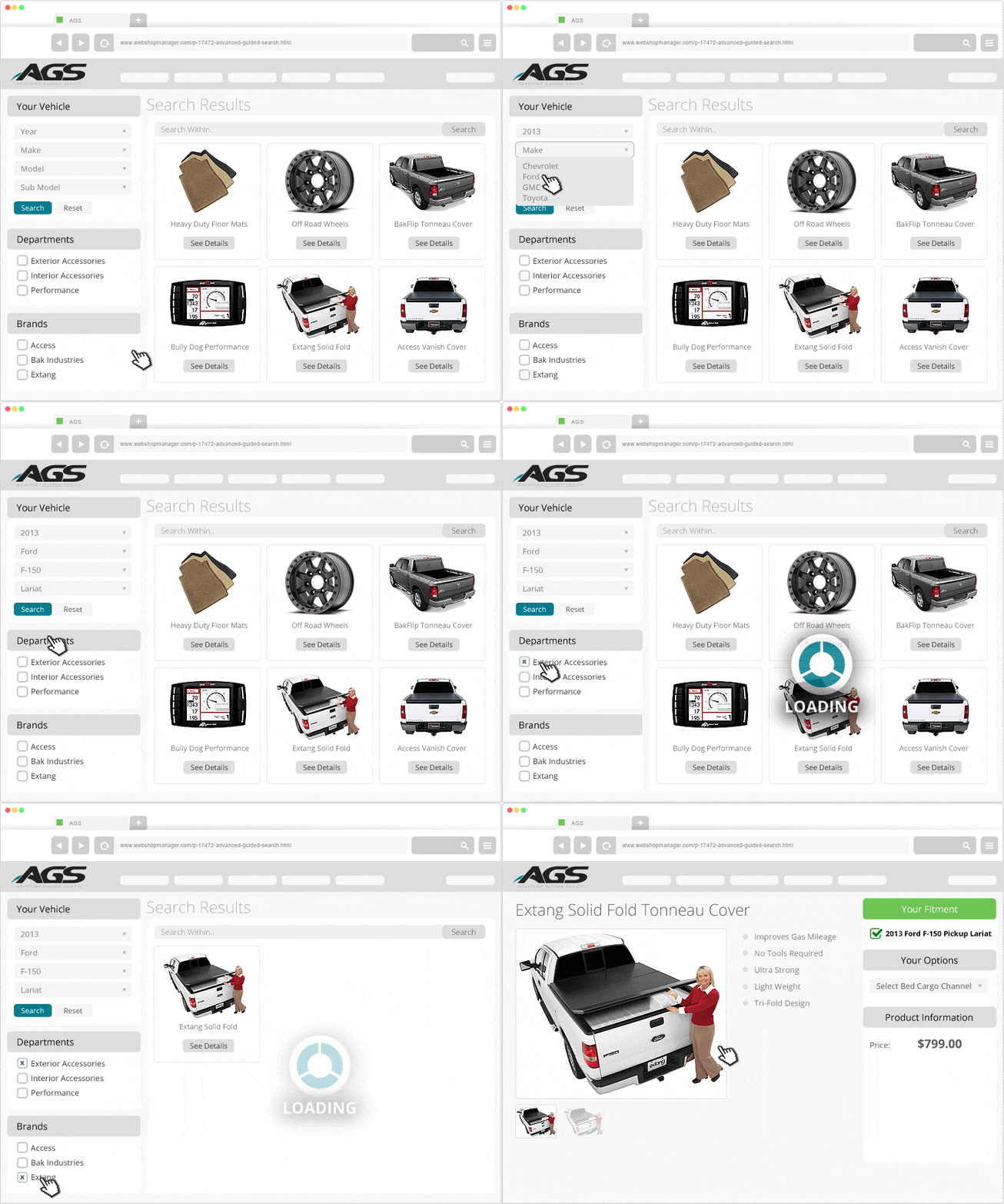
When the category/brand/attributes have been selected to your customer’s satisfaction they will click ‘shop’ and then be redirected to a dedicated landing page for the products that match their query.  The customer entered search criteria selected will be remembered throughout their shopping session even if your eCommerce customer clicks away from the landing page.  As they browse other product pages they will only be shown products that match their saved search criteria.  This will reduce the chance of your customer making the wrong purchase, and drastically reduce their confusion.  Your E-commerce customers can easily modify one or two attributes and run a new search, or entirely clear the search history to start over, and continue shopping, with WSMs layered navigation.

Organizing Products is only Beneficial for the Automotive Aftermarket Industry, Right?

Absolutely not.  Numerous industries can benefit from organizing product by brand/model/part.  Take for instance eCommerce site pws Laundry that sells commercial laundry parts.  Instead of taking up valuable customer service phone time to ensure their customers are ordering the correct part, they can order simply, and efficiently online because of guided navigation!  

eCommerce sites do not have to sell tangible products to enjoy the benefits of the Brands & Attributes with Variants.  There are instances where services, or in the example of the Travel /Tourism industry, they can organize experiences to help your customers find the perfect fit for them.  Another Side Tours uses the Brands & Attributes system to help customers find the right tour package, in their destination city, with their interests in mind. 

For Computer & Technology parts and accessory e-tailers, keeping computer parts organized for customers isn’t a nicety, but a necessity.  As an example of how this might be applied, here is what the application for an Intel CPU might look like...

* Category: Computers -> Processors
* Brand: Intel Corporation
* Attribute, Make: Hewlett Packard
* Attribute, Model: Presario

Categorizing Products Using Brands & Attributes for eCommerce

Each type of categorizing offers unique ways to organize your eCommerce products for faceted search. Before you begin, you need to decide which type(s) best fit your needs depending on your products. Below is an overview of both features. Additional details to follow.

Brands – For those that sell products from multiple manufactures, you can create as many brands as you need, and select the brand when you create/edit your products. Optionally, brands can be included in your eCommerce Web template allowing customers to access them from every page.

Attributes – Attributes are what create a dynamic dropdown list so your customers can make their selections to narrow their search, also known as faceted navigation. An example of this is Year/Make/Model. Customers make their first selection, and the other lists will be modified based on that first action. The dropdown displays products you have assigned for each list. Variants are used to describe specific products each with their own SKU that are all essentially the same product with the exception of their attribute application. A great example of this is the popular Make Model Year lookup you see on so many automotive sites which is used to find the exact application for a single product that has 100 variations depending on the vehicle it fits.

Brands and Manufacturers

Selling products from several manufactures offers your customers options which will ensure they will find a solution to their need.  However, you may find that customers with brand loyalties like to shop by brand. You can easily create a brand, add a logo for brand recognition, specify the order you want them listed, and dynamically display them on all on your eCommerce site pages. Once you have specified which products belong with which brand, your customers can click on the brand they love and browse those items. Before you can assign your eCommerce products to a brand you need to create that brand. Highlight Catalog on the WSM™ menu and then click Brands.

eCommerce Brands & Attributes

Click the Add Brand button on the top right of your screen. We will discuss the numbered items in the Add Brand screen below.

eCommerce Product Databases

Click the Add Brand button on the top right of your screen. We will discuss the numbered items in the Add Brand screen below.

Shopping Cart Database

  1. Title - The name of the brand or manufacturer. This name will be used on your site when displaying your link to the specific brand page. Attributes may appear as text links, logo links, or as a dropdown list. Talk to a WSM team member for assistance.
  2. Page Title - The page title is displayed at the top of the browser window when viewing this brand.
  3. Meta Description - The Meta Description is shown in SERPS (search engine result pages). Create a compelling description of the product so that when your page is included on SERPS people will be more inclined to click on your listing. Limit to 200 characters or 2 sentences and do not repeat any word more than 4 times.
  4. Description - The description of the brand or manufacturer. This information will appear at the top of the brand page.
  5. Template – This determines what site template to use when displaying this page. If your site utilizes more than one template, click the drop down menu and select the appropriate template for this page. If your site only has one template, confirm that default is selected from the dropdown list.
  6. Priority - Determines the order priority when displaying the link when Brands are displayed on the site. A higher number will move the item up, displaying it above lower numbered brands.
  7. Image - The image to display for the brand or manufacturer, usually their logo. This image will appear at the top of the brand page and depending on your design, as a thumbnail link to the specific page.

Assigning a Brand to Products

A product can only belong to one brand. To assign a product to a brand click the edit icon for the product, scroll down to the Categorization section.

Click the dropdown arrow and click the brand name.

Website Search and Find

Catalog Attributes

With a shopping cart website your customers may find they have thousands of products to sort through. Customers want to find the products they need quickly and easily. Attributes allow you to easily organize products based on groupings (Attributes) you create, i.e. make model year. Then WSM will display a straightforward search tool for your customer to narrow the products listed based on the Attributes created by you.

Highlight Catalog on the WSM menu and then click Attributes.

Year Make Model Database

Click the Add Attribute button. We will discuss the numbered items in the New Attribute screen below.

eCommerce Product Sorting

  1. Label - The attribute “label” should describe the group of attributes. i.e. Make, Model, Year (or range of years), Color, etc. The Name is displayed in the dropdown box to the customer. It should describe the data options they are selecting. This is also the value you will see in the product screen when creating/editing products.
  2. Range – Click the check box if the value entered in “Add Value” represents a range.  i.e. “1964-1976”
  3. Add Value– This is the area where you name the Value that will appear in the dropdown list to your customers for this Label. Note: If you are adding several labels to an Attribute, click Add Attribute before adding values to each Label.
  4. Add Label – Click the Add Label button to add an additional label under the specified Attribute.
  5. Add Attribute – “Add Attribute” will save the label(s) and any values that were added.
  6. Delete – If you click the delete icon it will remove the “label” from the attribute list. (will not be displayed until the Attribute is added)
  7. Value Priority – After you save the Attribute by clicking “Save Changes”, you will have the ability to drag and drop Values to specify their order.  To do so, place your cursor on the text of the value, click and drag. 

Assigning Attributes to Products

You can assign as many attributes as appropriate to products. To assign attributes to a product, click to edit icon for the product, scroll down to the Options & Attributes section.

Click the Open Attributes button to access the attributes you have created.

Database for eCommerce Sites

For each product you can quickly select the attributes that are appropriate for each of the drop down menus.  When you are finished adding a line item click “Add.”

Product Organizer for eCommerce

Adding the Attribute search feature to your website

Typically, you will want the “attribute search” available on all pages of your eCommerce site. You will need to add code to display the Attributes in the appropriate location in the template file. If you have not edited the template, or you do not know HTML you should contact a WSM team member to assist you with adding the guided search feature.

Increase Sales and Reduce Shopping Cart Abandonment with Faceted Browsing

We consider Web Shop Manager™ to be the best Content Management System (eCommerce CMS) available.  If you are need of an all-encompassing eCommerce solution that can help reduce shopping cart abandonment, and increase sales, all from within a comprehensive eCommerce CMS, look no further than WSM.  If you want to learn more follow this link to see more examples of our Automotive Year Make Model lookup in action. You can also contact us today for your free web design quote, or call WSM to speak to an industry expert.  We are here because we believe in WSM’s ability to change the way business is done. 

Talk To Us:

(619) 278-0872

Call us & get personal attention!

 
Free Quote or Free Quote | Stay Connected