Automotive eCommerce Consulting & Strategic Analysis Services
A high performance site requires a successful strategy for data, search and site experience, inventory control,
product merchandising, pricing, ongoing marketing, etc. Leverage our experience and
track record to thrive online.
Keys to becoming a millionaire selling auto parts online
Advance your online success with the right partner - Ecommerce Pioneer Dana Nevins
Technology
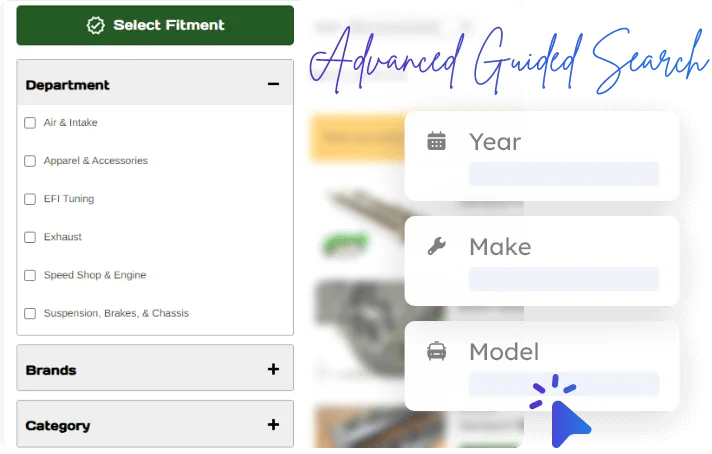
We build your Automotive eCommerce site on powerful, scalable technology designed for performance and flexibility. From seamless integrations to optimized infrastructure, we ensure your website runs smoothly, loads fast, and supports your business as it grows.
- Advanced Attribute Filtering & Search
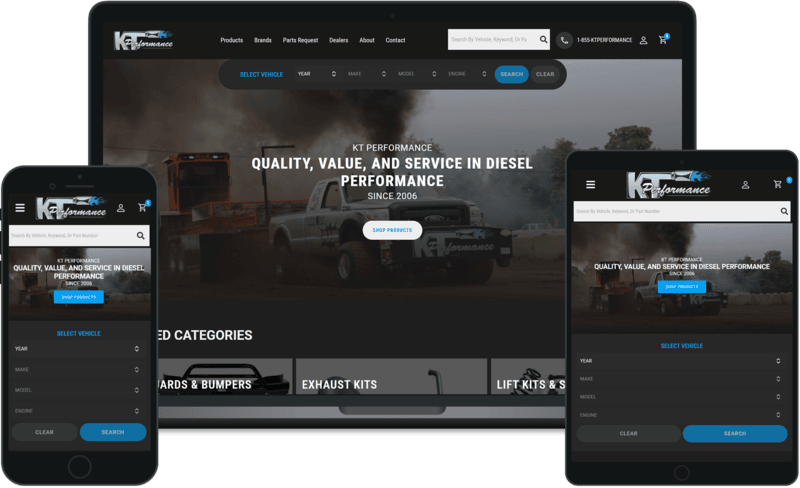
- Automotive Year-Make-Model Search
- Buyer Community
- B2B and B2C Functionality
- Mobile Optimized Design
Branding & Design
We create visually striking, cohesive designs that reflect your brand’s identity and connect with your audience. Every element, from colors to typography, is crafted to build trust, enhance user experience, and make your brand stand out online.
- Logo Design
- Brand Identity Package
- Site Architecture & Design
- Rotating Banners
Product Data
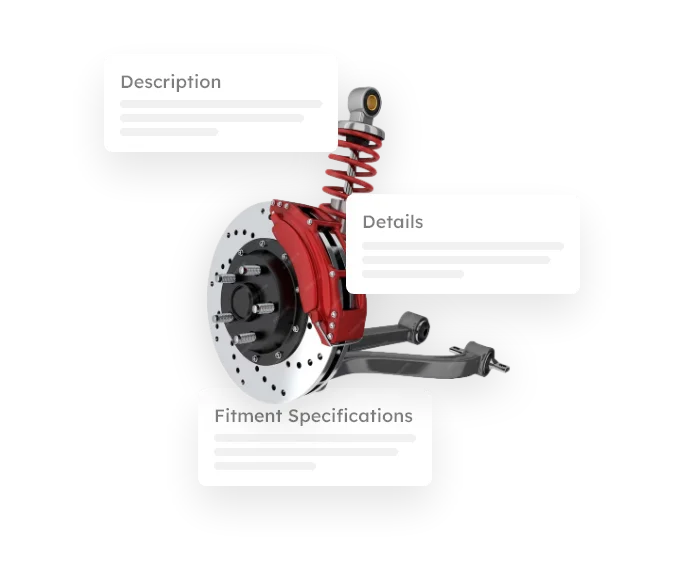
We organize, clean, and optimize your product data to ensure accuracy and consistency across your eCommerce site. Clear, detailed, and well-structured data enhances search visibility, improves user experience, and drives more confident buying decisions.
- Product Data Development
- 3rd Party Integration
- Complex Product Data Management
- Inventory Management
Marketing and SEO
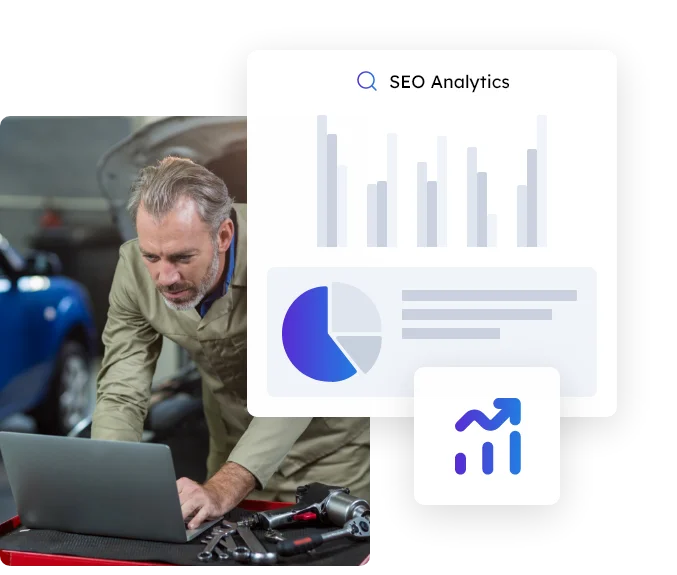
We develop targeted Automotive marketing strategies that attract, engage, and convert your ideal customers. Through data-driven campaigns and continuous optimization, we help your brand reach more people and turn traffic into measurable results.
- Product Merchandising
- Social Media
- Brand Optimized Landing Pages
- SEO/SEM Analysis & Planning
- Channel Integration

Ready To Grow Your Business?
Ready to grow your aftermarket eCommerce presence and lift conversions across auto, truck, powersports, marine, and more? Connect with
Web Shop Manager for tailored solutions: strategy, platform, and performance in one team.