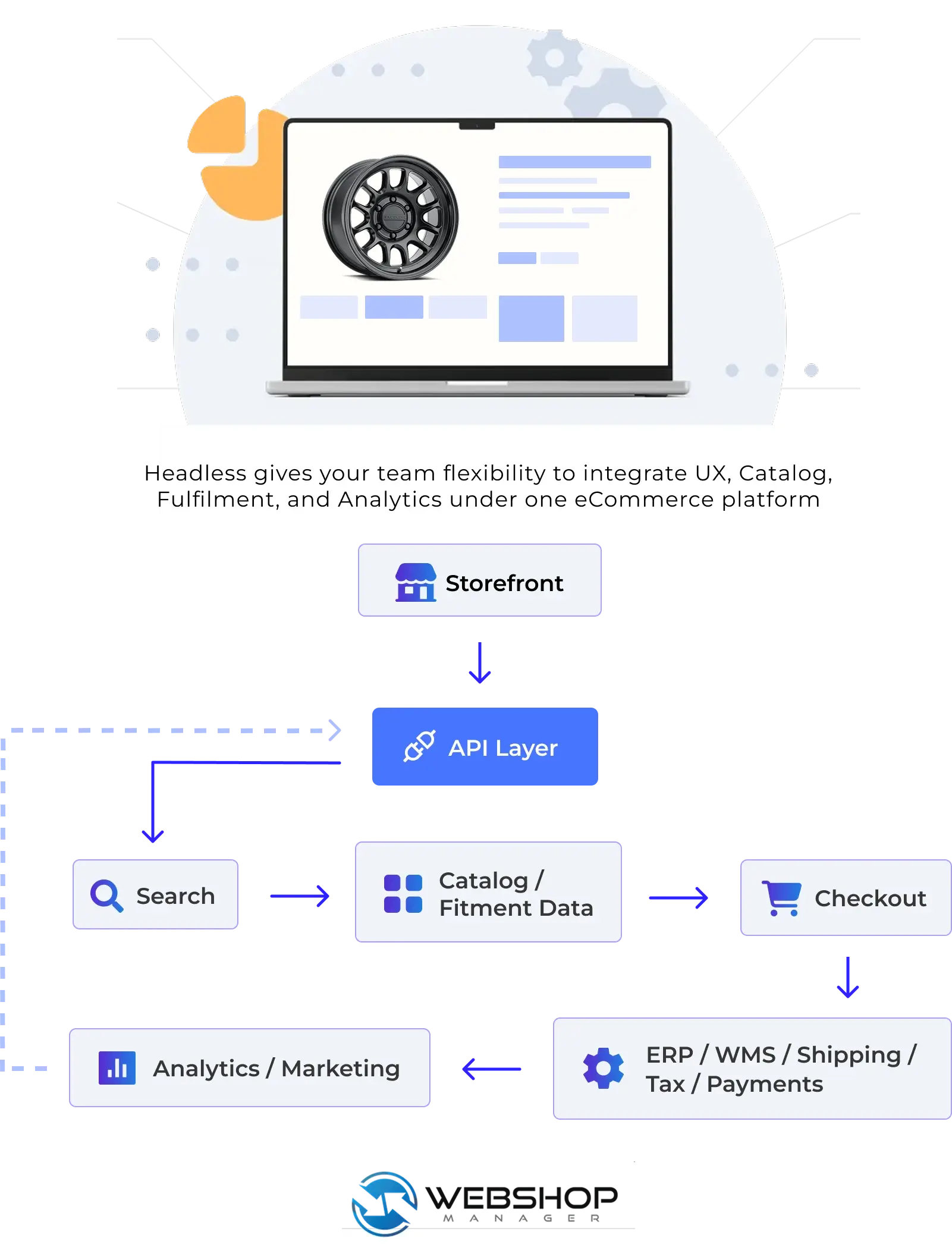
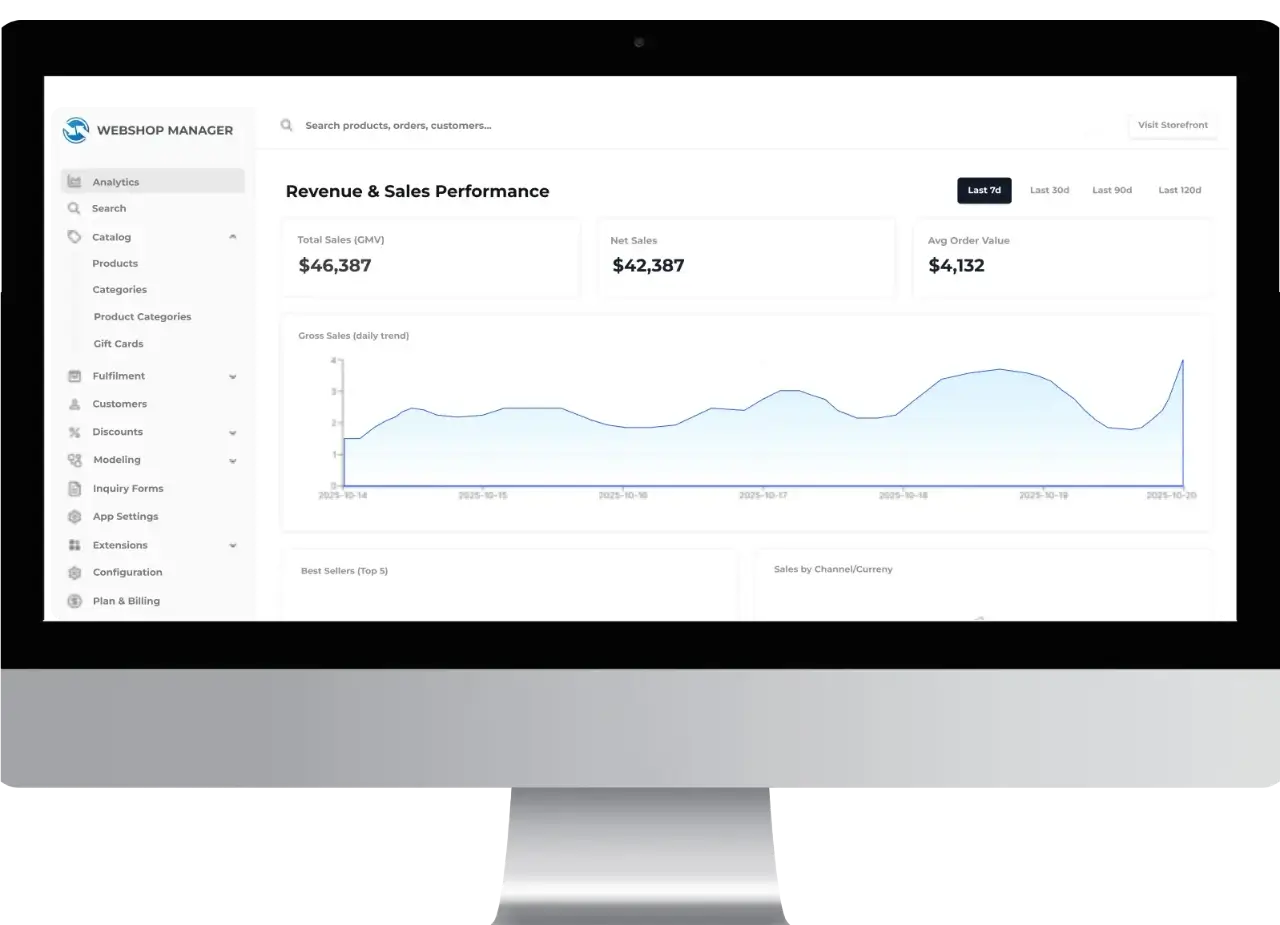
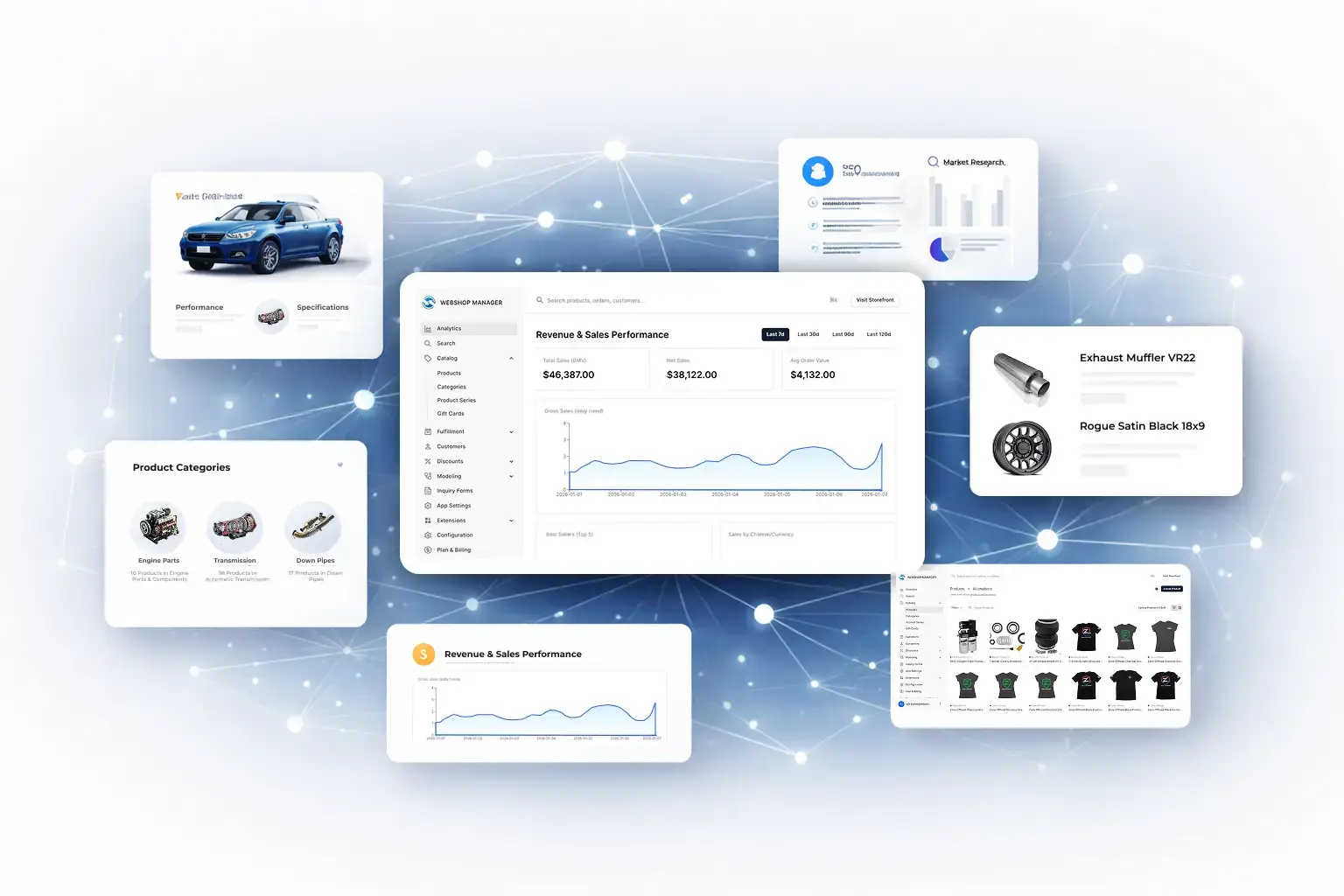
ADP Lightspeed is an Order Inventory management and processing system. Used to take orders and monitor physical inventory. From www.adplightspeed.com “ADP Lightspeed dealer software products help dealers maximize: parts inventory control, business processes, sales management control, service management control, rental management, Customer Relationship Management (CRM) and dealer profitability.”
ADP Lightspeed is not the first third party software provider that Web Shop Manager™ (WSM) has integrated with. WSM integrates with QuickBooks using the QuickBooks web connector, Shipworks, Authorize.net payment gateway, and can automatically import product data from database such as DCI-Catalog Rack for the Automotive Aftermarket industry. WSM’s ability to interface with third party software is what helps to make it the most comprehensive eCommerce Content Management System. With WSM we have the ability to help our clients make more money more efficiently. One way is with eCommerce developments like ADP Lightspeed data integration.
Real time data integration with ADP Lightspeed means that our customers can process orders, manage content and products from the WSM CMS and the following data is automatically imported to ADP Lightspeed:
Enhanced product data importing from WSM to ADP Lightspeed meant that combinations of product options, for instance red-small t-shirts or medium small t-shirts, would need their own specific SKUs and inventory management controls within WSM. WSM answered this challenge with Product Options with Inventory Management the WSM inventory management software. Within each product in WSM, product option configurations can be assigned essentially creating sub-products. This eCommerce feature enables products listed within WSM to map with ADP Lightspeed.
Because WSM is a proprietary eCommerce CMS, we can adapt and make changes as necessary to accommodate the challenging needs of our eCommerce customers. We can now offer ADP Lightspeed data integration to our Powersport Dealer clients to help them be as successful as possible.
When it is time to start looking for a customized eCommerce solution for your company be sure to request your one-on-one CMS demonstration. We pride ourselves on the fact that you have constant contact to real human’s when you need it most. If we are able to help you design the eCommerce website of your dreams we certainly will. Contact WSM today for more information about how you can start moving towards the eCommerce partnership your company deserves.
Web Shop Manager™ (WSM) is introducing a new Inventory Management system that works in conjunction with Product Options that our eCommerce clients are already familiar with. Product Options with Inventory can be used for Inventory Management when there are 10 red-small t-shirts, and 12 red-mediums. Assigning inventory levels to these configurations will ensure that your customer will not be able to order more than you have on hand. In addition, you can use this system to assign specific SKUs to configurations. For instance if red-small has its own SKU you can assign that only to that particular configuration, in a sense creating a brand new item.
Please notify a WSM team member if this seems like something your eCommerce website could benefit from. This feature will need to be enabled for you. Once this has been enabled the steps to proceed are as follows.
The procedure to create Option Sets with Inventory is very similar to creating Option Sets in general. The procedure and more details can be found on the Product Options page. Remember to use Global Options wherever possible to help save time and to help keep your eCommerce Product Options organized. For instance, if small – medium – large are used for more than one item it makes sense to add that as a global option.
On Option Sets that are to be used in conjunction with Inventory Management, check Yes next to Inventory. Please see the image below for an example:
The next step is to assign the corresponding Option Sets to the product.
Navigate to the product you wish to assign Option Sets with Inventory too and follow the steps below:
Edit the product with Option Sets assigned, and follow these steps:
Each Configuration can be edited in the fields that are numbered and explained below:
Save your Configurations once you are satisfied.
Your eCommerce customers will see something that appears like all other Option Sets on your site blending seamlessly.
Managing eCommerce Products and Inventory has never been easier. Our customers can take something that was already familiar to them and now use it for Product Inventory Management. Our modular eCommerce Content Management System (eCommerce CMS) makes it easy to take existing eCommerce features and use them in new ways. We are thrilled to offer this new eCommerce enhancement to our existing clients, and hope this may alleviate pain for those that have yet to discover how WSM can help them.
Contact WSM today to find out how we have helped 100s of others and how we can help your eCommerce aspirations become a reality. Just one warning: if you are looking to pull a number and get a cookie cutter experience, we are not the right fit for you. However, if you are looking for personalized attention and a devoted team of web designers, website developers, and eCommerce support staff, you may have just found your new home.
Web Shop Manager™ (WSM) has released version 3.3.3 with some exciting changes to the Catalog and Product page views. You may have already noticed some subtle differences around your eCommerce website. The recent enhancements include:
A new option has been added to the System>Configuration>Catalog tab. When “Enhanced Catalog Layout” is enabled, additional information regarding Categories and Products will be displayed. This additional information may include product descriptions, product availability, product condition and an “Add to Cart” button for each product listed. Here is an example of Enhanced Catalog Layout being enabled:
On Category and Brand pages where products are listed, you will notice that customers have the ability to sort products, and to toggle between list and grid view. These view preferences will be remembered as they continue to shop your eCommerce website. This has been implemented on all eCommerce sites and requires no further action to take advantage of this. When Enhanced Catalog Layout is disabled (default setting) only Category and Product names are displayed. Same example as above but with the default setting:
You may also notice some subtle differences on Product Pages. Option Set boxes (when applicable) have a slightly new look. The remainder of the product listing including the extra details should look very familiar to you.
While the new look of Option Sets will affect all of our eCommerce clients, the addition of Product Page Views found on the dashboard under System>Configuration>Catalog will not. Product Page View allows you to select different display options for your product pages. “Tabbed” will format the additional information in a horizontal view; this is not the default view (see the image above for an example of the default). NOTE: This setting may conflict with your eCommerce website’s Style Sheet. A consultation with a WSM employee is recommended before use of this setting. The default view will not look any different than what you are used to. The Tabbed view however will look similar to this:
Connect with external programs with Custom Order Exports chose from (4) different order exports; (1) XML, (3) CSV. Click to learn more about custom order exports.
From the order administration screen take a look at the new Sales Tax Feature. Use the calculator tool to add sales tax on products and/or shipping.
Free shipping can be specified for individual products rather than eCommerce site wide. Find it in the Shipping & Handling portion of the Product pages.
Specifying warehouses for each product is available for Dealers. If you’re a Dealer you can add Warehouses under the System tab and assign products to them. For products assigned to each warehouse, shipping will be calculated from the Warehouse address versus the address given in the configuration tab.
Increase or decrease the UPS and FedEx rates given to your customers by amount or percentage. This affects both negotiated and non-negotiated rates. These changes can be set under Configuration – Shipping & Handling tab.
When our eCommerce customers give us feedback on how we can help to make their lives easier, or make them more money we listen. If you are currently a WSM customer please let us know if you have any questions or concerns regarding the recent changes and their affects on your site. And please keep the suggestions and feedback coming.
On the other hand, if you have yet to experience WSM and the incredible eCommerce features that are available right out of the box, we suggest taking a moment to contact WSM today to figure out how you can get all of your eCommerce needs (web hosting, website design, and web development) taken care of under one roof.
Managing 10s, 100s, or 1000s of products from one intuitive dashboard has always been what Web Shop Manager™ (WSM) has offered to our clients. From that simple idea, we continue to improve WSM (eCommerce CMS) based on client, and staff feedback and suggestions. Listening to those recent suggestions we have added a simpler product update feature that will save time, and just makes good sense.
The new eCommerce CMS enhancements come in the form of quick product edits. Previously to edit any portion of a product listing you would navigate to the product, click edit, change the appropriate data field, and save your changes. Well this works great if you want to change the cross-sell/up sell feature or modify product options. Although, if you simply want to change a product name, or update the sale price, you can do that right from the product list!
In order to make it easier for our eCommerce clients to make more money instead of spending their free time updating products, our product listing screen has been enhanced for our existing eCommerce clients. This should look familiar:

However, you may notice that fields can be edited right from the Product listing page! Here is the scoop on what can be edited from this page:

1. Name- This is the product name displayed to the customers in the eCommerce product catalog.
2. Tax- If the item is subject to tax, the tax check must appear.
3. Price- The normal price of the item.
4. Sale- If set; this will override the price field when a customer purchases this item. The sale price will be displayed in addition to the normal price in product listings.
5. Stock ID- This is a custom stock identification number displayed to the customer.
6. Dealer ID- This is the identification number given to the product by the manufacturer.
7. Avail.- If the availability is set to Sold or Out of Stock, customers will not be able to purchase this item or add it to their cart. If the availability is set to Inventory, the display of the add to cart button is calculated based on the remaining inventory (8.). If the remaining inventory is (0), then customers will not be able to purchase this item.
8. Inv.- Current number of items in stock.
9. Hide- Toggle between hidden and unhidden. Hidden items are not displayed in the E-Commerce catalog.
Simply hover over the item you wish to change, click, and make your edits! There is no need to save from this screen. WSM will automatically save those product updates for you and they will be reflected automatically on the frontend for your customers.
In addition, from the Category List you can click on Priority to type in the desired value:

Did you ever think organizing your eCommerce product catalog could be this fun?
When you need the right tools to get the job done, make sure you talk to eCommerce industry experts, WSM. We have you covered from tiered pricing levels, custom eCommerce Web Design, and Website Development! Whether you are looking to break into eCommerce or are already established we’re confident we can find a solution to match your needs with WSM. Contact WSM to speak with one of our eCommerce expert staff, or click to get a free web design quote, and begin exploring your options. We would be thrilled to provide your company with the same level of service & support that so many of our existing clients have enjoyed for years. Then you can start planning what you will do with all your free time!
Creating a slideshow for your eCommerce site pages, or home page is incredibly simple using Web Shop Manager™ (WSM) as your content management system (eCommerce CMS). Photo slideshows can be used in a variety of ways to get the attention of site visitors and emphasize special features of the eCommerce site.
For instance, a photo slide show can be used to showcase a new product, or a popular one. A slideshow located above the fold (shown without a site visitor having to scroll down on the page) is a great way to help people quickly identify what makes your products or services unique.
In addition, contests or special promotions including a coupon code could be highlighted in a slide and then hyperlinked to a site page or eCommerce blog post for more information and details.
Furthermore, if you offer free shipping, or quantity discounts be sure to mention them in the slideshow in order to increase adoption from your customers. Slides could also be made for the seasons and simply hidden when not in use.
As an eCommerce merchant it is your job to explain to your customers as quickly and clearly as possible what makes you different from the competition and why they should chose to work with you. Photo slideshows can help creatively and graphically explain the differentiating facts and put you one step in front of the competition. While helping your customers gain insight into why they should buy from you, slideshow titles can also be SEO optimized to help get found in search engines and bring even more relevant traffic to your eCommerce website.
In order to help our clients be as successful as possible with their eCommerce endeavors WSM is committed to providing tools that are simple, easy, and effective. Time is finite and the learning process should be short and sweet. Putting you in complete control of your eCommerce website is something that we take pride in, and make a high priority. Adding slideshows to your eCommerce website can be a fun, interactive way to engage site visitors and help lead them toward conversion.
Utilizing WSM to its full extent is empowering and once you start to get a feel for how to create slideshows there will be no stopping you!
The Photo Gallery Module included with WSM allows you to create photo albums that can be displayed on dedicated site pages, or embedded within content or on the homepage in the form of a slideshow.
To begin to create your slideshow highlight Modules, Click Photo Gallery from your WSM dashboard.

To add a new album, click the Add Album button.

The Add Album screen is discussed in detail below. After you create your album you can return, make changes, and add photos. It is not necessary to have all of your photos ready to upload before you create your album.
Each numbered item is discussed below.

1.Title – This is the name for your album. This name should describe where your album is used and
for what purpose i.e. Home Page Slide Show. Optimize the title for search engines to help get found in SERPs (Search Engine Results Pages).
2. Description – Use the description for additional information about the album. Use this field for reference notes for coworkers.
3. Priority – Priority sets the order the album is displayed in the gallery. Higher priority albums are
placed before items with a lower priority.
4. Parent –This is similar to creating folders and sub folders on your computer. This is useful if have several slide shows such as holiday, or special promotions. If this is the case, you may want to create an album named Slide Shows and add sub albums for each individual show.
5. Template – Several site page templates may have been created for you by the WSM web design team. If so, you can specify which template is to be used with this drop down.
6. Hidden – Slide shows are special albums used in conjunction with a program on your site (which
the WSM staff will setup for you). If you do not plan to use this album for any other purpose than
Slide Shows with Web Shop Manager, you should select Yes.
7. Add Album – Once you have provided the required information click the Add Album button to
create and save your album. You can always edit the album later if you need to make changes.
There are many great photo editing tools available to you. If budget is a concern, try using free tools such as, Sumo Paint, or gimp. Sumo Paint, and gimp are intuitive and can help you to easily crop, resize, or enhance photos to include in your slide show. It is important to have slides that share the same dimensions to eliminate skewing, or distortion. The easiest way to find out what size of graphic you need is to look at an existing slide created by WSM. If you are using Mozilla Firefox, simply right click, and click on ‘view image info’. Pixel dimensions will be displayed in a dialogue screen. If you are in Internet Explorer, right click, and click on ‘properties’ to view pixel dimensions.
Custom photography would be fantastic to include in your slideshow, however if this is not an option for you, take a look at royalty free photo sites like istockphoto.com. Professional looking photos can help differentiate your site from your competitors and will help convey your message graphically. In some cases this can mean the difference in reaching your target market, or missing them completely.
Once you have made the appropriate changes to your photos, upload them to the slideshow album already created. Here is a brief overview of the buttons available in the Photo Gallery. They are located to the left of each album name.
This icon will allow you to edit the information you entered when you first created the album.
This icon will display sub-albums, if any, that are assigned to this album.
Use this icon to access the photos you have already uploaded to the album and to add photos.
This icon will display the album as a web page. You will not display the album to your viewers in this format.
You can add photos two different ways, individually or multiple files at the same time. Both are available from the same Add Photo screen.
To add photos, as mentioned above, click the
icon.
In addition to preparing your photos, and then your photo albums for the slideshow there is one more item that needs to be in place for the photo slideshow to be completely functional. This component is called a Widget. The Widget will include parameters that control how the slide show is displayed to your customers.
After reviewing this section if you need assistance with setting up the widget, please contact the WSM support staff.
Widgets are small programs that make an application or service perform in a specific way. They allow users to access applications without in-depth knowledge of what is happening behind the scenes. You will need to place a small piece of widget Code for your album to function as a slide show. The slide show can function with a few basic settings. The only code you need to change is the ID and the height of your images, see example below. The ID identifies which photo album you want to use for this slide show. You also need the parameter for slideshow. The parameter is what tells the widget to display the album as a slide show.
To determine the ID for the photo album from within your eCommerce dashboard, highlight Modules and click Photo Gallery. Look in the ID column for the album you created and note the ID number.
To add the widget code to your Site Page, highlight the code below, press Ctrl C to copy, while editing the predetermined Site Page, place your cursor where you would like the slideshow to appear on the front end, then press Ctrl V to paste. Delete the 123 ID and type the ID number for the photo album you have created for the slideshow.
{{ widget name='widget_cycle' gallery='true' id='123' show_prev='false' show_next='false' cycle_controls_top='true' instance='_1' imgsize='F' width='737' height='279' cycle_timeout='8000' cycle_speed='200' cycle_fx='fade' }}
You can add additional parameters to your code to change the way your slide show functions and appears. Each setting is described below.
Required Parameters:
gallery: determines that the gallery module is to be used for this widget.
Required value: gallery='true'
instance: recommended to use only if there are one or more instances of the widget that need to be styled differently. It adds a unique div id value to the <ul> tag
Values: numeric or alpha
Example: instance='_myslideshow'
limit: must set a limit on the number of images that get loaded to the slideshow. Max recommended is 5
Values: numeric
Default: unlimited
Example: limit=5
cycle_fx: this controls the transition animation between slides. Most of the effects listed here will work: http://malsup.com/jquery/cycle/browser.html for list of effects
Default: fade
Example: fx='slideX'
cycle_timeout: Time between the fades in milliseconds
values: milliseconds
Default Value: 3000 - which equates to 3 seconds
Example timeout = '2000'
cycle_speed: Fadingspeed
Values: in milliseconds
Default Value: 1000
Example: speed = 2500 - which equates to 2.5 seconds
height: Height of the containing element
Values: Any css-height-value such as px, em, % - recommend doing px value
Default Value:120px - which equals the default thumbnail height
Example: height = '315px'
Pagination Controls:
cycle_pager: determines to show pagination controls
Default: true
Example: cycle_pager='false' - will remove pagination controls
show_prev - used to hide previous button
Default Value: True
Example show_prev='false'
show_next - used to hide previous button
Default Value: True
Example: show_next='false'
cycle_controls_top: move pagination controls to the top. Controls are defaulted to show under the slideshow of images.
Default Value: false
Example: cycle_controls_top='true'
cycle_pager_thumb: pagination links can be the thumbnails of the images
Default Value: false
Example: cycle_pager_thumb='true'
Related parameter:
img_thumb - size of the thumbnail.
Values: T=thumbnail, M=medium, F=fulsize
Default=T
Example: img_thumb='M'
cycle_pager_name: pagination links can be the Name of the image
Default Value: false
Example: cycle_pager_name='true'
cycle_skin_overlay: pagination controls are overlayed on top of theslideshow. Only the Prev and Next links are present.
Default: false
Example: cycle_skin_overlay='true'
Control Link of the images:
The default setting is to use the URL places in the URL field when creating the album image. But you have other options as needed.
link_image: link to the photo view in the album
Default: false
Example: link_image='true'
lytebox: open up the image in a lytebox popup
Default: false
Example: lytebox='true'
Other Parameters:
show_info: show the description of the image
Default: false
Example: show_info='true'
Photo Slideshows have been used by eCommerce industry leaders to effectively promote products, and increase sales. Create your own professional looking website slideshow in a matter of minutes with WSM!
If you are looking for a Content Management System & eCommerce Web Design Company to take your business concept and help transform it into a selling machine, contact Web Shop Manager today. We take care of the details so you can concentrate on your e-business.
Have you seen WSM in action yet? Take a moment to sign up for your own LIVE demonstration.
A marketing plan should be an integral part of your eCommerce business’ strategy. There are many ways to start thinking about a marketing plan however; there are two very different schools of thought. The first is to make decisions based on instinct, while being influenced as little as possible by outside sources. Do not look at eCommerce competitors, and shoot from the hip.
The second looks at eCommerce competitors with an analytical eye, breaking down campaigns, and messages to determine where there is room for improvement. In my experience the most effective way to determine a course of action is by looking at where others have gone, and then making the best decision based on a significant amount of research.
In order to maintain our status as the most comprehensive Web Design Solution, part of our premium eCommerce Web Design Package includes a Competitive Marketing Analysis. The Competitive Marketing Analysis will assist in providing information about your current or under construction website, amongst a group of peers. We will also look for any buzz happening currently about your company or brand online, and help you determine where it would make sense to maintain online profiles. In other words, help to specify where your time and efforts will be the most effective online.
The first portion of the report will examine Customer Experience, or how your customers are led through the site, and how that effects conversion. After all, the point of eCommerce is to make money. Any measure that you can take to increase online sales will be worth looking at further.
In addition, WSM will examine Search Engine Optimization SEO including organic and pay-per-click (PPC) campaigns. We will include information regarding Meta data and how to use it properly, as well as a glimpse at what your competitors are doing in terms of PPC campaigns.
The third component of the Competitive Marketing Analysis will include a Social Media assessment. This portion will take into account your current profiles, if any exist, as well as recommendations for profiles including approximate time requirements to help budget appropriately. You can also expect some tips and tricks, and great examples of jobs well done to learn from.
Looking at what others have done in terms of Customer Experience, SEO, and Social Media will reduce the learning curve and provide relevant examples of what is working well, and what can be improved upon. This report will provide you with a road map, and a tremendous amount of information to help with your online marketing efforts.
Without establishing a baseline there will be no way to understand where you should go from here in terms of Internet Marketing. By assessing your current online presence, and that of a peer group, you will gain a solid understanding of how to help make your company more successful online. This 20+ page report is an invaluable resource to help solidify your online presence. This report will help you combine the phenomenal eCommerce features that WSM has with some examples of use that will take your eCommerce business to the next level in no time.
Over the years we have learned what differentiates successful businesses online. Using that knowledge base we design websites to our client’s specifications making suggestions along the way. If you need fantastic eCommerce web design & development to set apart your company or brand, look no further for the boutique style web design firm that will take your goals and help them become a reality. Take the next step and complete our free webdesign quote form, or request a free website analysis to have a small taste of what you can come to expect from an eCommerce partner like WSM.
When I first heard that Web Shop Manager was upgrading to a one page checkout, adding to an already awesome eCommerce web software, I thought to myself, why? What is a 1 page eCommerce checkout? What does it do for my eCommerce business? What does a one page checkout mean to my customers? What makes it a revolutionary one page checkout? What the heck is AJAX, besides a cleaner for my house!? So I completed some research to find my answers and discovered why Web Shop Manger's one page eCommerce checkout using AJAX is a must have for anyone who wants to sell products online!
We all know that you have to go through a checkout in order to purchase products. Whether you are in a brick and mortar store or online, this process is required. Can you imagine being at the grocery store and having to go to 3 different stations to checkout? The first station, to inform the sales clerk what type of customer you are (existing shopper, new, or a guest). The second station, to provide them with your billing/shipping information and to decide if you need help carrying your products to your car. Then, finally the third station, where you would provide them with the payment for your goods. If this was the case we would probably get fed up and not continue to shop there and see several shopping carts full of food that had been abandoned!
So why do we put up with all those stops when shopping online? Why do we go from page to page providing a little information at a time to get what we want? Well, not everyone does. In fact I found that abandoned shopping carts is a common problem for eCommerce sites. Several independent studies have corroborated cart abandonment rates of up to 75%, while it’s been noted that about half of all prospective customers bail out of their purchases sometime between selecting products and clicking the buy button. Also, research has shown that the longer it takes for a customer to complete a sale, the higher the shopping cart abandonment rate.
Well the great news is with Web Shop Manager’s revolutionary one page, one step checkout your customer’s no longer have to make all those stops. They will go from cart, to checkout/purchased in one step! Web Shop Manager’s one page checkout process allows you to close your sales quickly and easily.
You may think to yourself why is this one page checkout such a big deal…I’ve see other one page eCommerce checkouts! But believe me you’ve never seen one as dynamic as this one-page eCommerce checkout! What makes Web Shop Manager truly one page is AJAX!
To help understand AJAX I turned to Wikipedia. Ajax, sometimes written as AJAX (shorthand for asynchronous JavaScript and XML), is a group of interrelated web development techniques used on the client-side to create interactive web applications or rich Internet applications. With Ajax, web applications can retrieve data from the server asynchronously in the background without interfering with the display and behavior of the existing page. The use of Ajax has led to an increase in interactive animation on web pages and better quality of Web services due to the asynchronous mode. Data is usually retrieved using the XMLHttpRequest object. Despite the name, the use of JavaScript and XML is not actually required, nor do the requests need to be asynchronous.
AJAX’s use on the one page checkout enables the checkout to function so your customers do not have to wait for a new page to load or the existing page to reload. The information is evaluated and processed behind the scenes, creating this seamless checkout process. This provides immediate customer feedback and error detection. Allowing your customer to quickly complete the checkout and their eCommerce purchase without stress or frustration.
As an eCommerce site owner you will see a drastic increase in your sales and cart conversions with this enhancement. Effectively and significantly reducing your cart abandonment rates. Existing Web shop manager customers are already experiencing an increase in sales, decrease in shopping cart abandonment and more returning customers.
This revolutionary one page checkout is included when you use Web Shop Manager to maintain your eCommerce site at no additional cost. Also included are several eCommerce features for eBusiness owners. Offering you more tools to manage your orders, see additional information by customer, and advanced searching tools. You decide, based on the products, which fields you don't need. For example, if the product does not require shipping then the customer will not be asked for shipping information.
Combine all this with an already extensive list of eCommerce feature and you will never want to use anything else to manage your eCommerce websites. If there was ever a checkout system that was fun to use, this is it!
Would you like to see for yourself how easy Web Shop Manager's eCommerce CMS is to use? Sign up now for a personal CMS live demonstration.
If you are looking to build a website and are unsure how or where to get started...you've found your starting point. Web Design Solutions (WDS) has everything you need. Whether you are looking to develop an informational site or sell Hundreds, Thousands, or Millions of products online, WDS is your new best friend.
Developing an eCommerce site has many factors to consider from deciding what your pages will look like to thanking your customer for their purchase. One of the greatest benefits to working with WDS is Web Shop Manager (WSMTM), an unbelievably easy tool you will use to manage your site, list hundreds of products, organize thousands of items, import millions of parts, and communicate with your customers.
First you must have the features all eCommerce sites require which are menus for organizing your products. Of course WSMTM has a feature for that, Categories. The employees at Web Design Solutions know how important it is for the consumer to easily 'shop' your site, no matter what industry. Consumers demand quick and easy ways to find the products they need. WSMTM's categories will dynamically build your menus and list the assigned products. Change the category name or easily hide them if you sell seasonal products. So easy! So fast!
Do you have products that come in different size, color, or fragrance and you want your customers to customize the product to fit their need. Then WSMTM has a feature for that, Product Options. Assigning Product Options to your product allows your customers to add customization during the shopping process. These Product Options give your customer the power to buy the right product for them. Create Product Options with the greatest of ease using WSMTM.
Have you ever wanted to find a part for your car? With Automotive Aftermarket shopping sites there are thousands of products to sort through. Customers want to find the part they need quickly and easily. WSMTM has a feature for that, Brands & Attributes. This feature allows you to easily organize your Automotive Aftermarket parts based on the year, make, and model. Then WSMTM will display a straight forward search tool for the customer to narrow the products listed base on Year, Make, and/or Model they select. Consider your products SOLD when customers use this tool!
Selling products from several manufactures is exciting and offers your customers several options. However, you may find that customers will want to shop by Brand. You can use WSMTM's Brands & Attributes eCommerce features for this function as well. Easily create your brand, add a logo for brand recognition, specify the order you want them listed, and dynamically display them on all your site pages. Once you've specified which products belong with which brand your customers can click on the brand they love and browse all of their products.
Do you have Millions of products? Do you think if will take forever to get them on your new site? Are you worried that you do not have the proper staffing to do all the data input? No worries,Product Data Importing is easy with our platform than any other one out there with custom profiles and scheduling you can keep your website data up to date with minimal effort.
For those of you that are in the automotive industry we understand the importance of managing your orders rather than managing products which is why we created a turn key solution with DCI / CatalogRack live integration. Web Shop Manager also comes with import tools for Network Solutions Monster Commerce, Yahoo! Stores, Volusion, osCommerce, Magento, Miva Merchant, Zen Cart, and more....
Any questions or concerns...do not worry WSMTM has you covered, contact WSMTM today about your eCommerce needs.
In an effort to make Web Shop Manager more Manufacturer friendly we have added the following features to the Dealer package (some are applicable to all packages)...
In addition to our feature packed Google Maps integrated Dealer Locator, we make all fields optional so you can fill in anything or only fill in certain fields.
We are proud to announce our new Advanced Survey module so you can keep your finger on the pulse of your customers wants and needs. It offers many different question configurations including...